







WOLFBOX Brands
WOLFBOX Brands
It is important to know how to handle your dash cam videos if you want to save important footage or look back at what happened during your drive. You need to be able to find and edit videos if you want to send them to your insurance company, keep your trip memories or look at what is going on around your car.
Here are the easy steps you can rely on to take to handle, move and edit footage from your dash cam. You will also learn how to keep key clips safe, edit them and organize your files so they are easy to find when you need them.
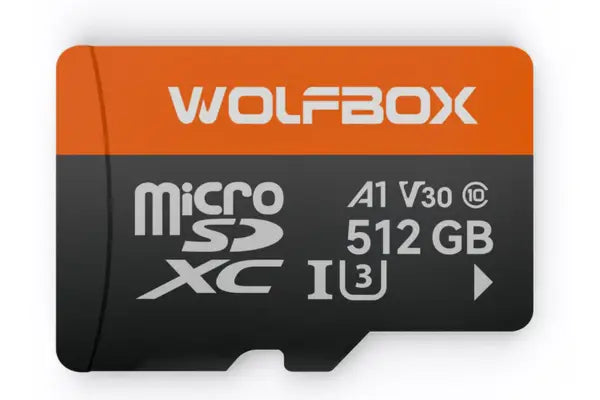
These days, most dash cams keep video footage right on a microSD card. Short clips of video that are recorded by your dash cam are usually 1 or 3 minutes long. It will start to record over the oldest files when the memory card is full. Although some cameras like those made by Wolfbox can store files in the cloud or over Wi-Fi, the SD card is still the most common way to store data.
Different files for events are available on some dash cams. You can save regular drives, accidents and dash cam videos taken while parking in different folders. With this, you can quickly find the clips you need without having to look through all of the files. You should also know how much space your camera has. Larger cards can hold more footage and make it less likely that you will delete important clips.
Storage Method |
Description |
SD Card |
Main method, loops and records all footage |
Mobile App |
Wireless download through Wi-Fi |
Cloud Backup |
Optional service for secure online saving |
Before you begin downloading videos, it's smart to take a few steps to protect your dash cam and your footage.
You should turn off your dash cam before removing the SD card. Removing the card while the camera is active might corrupt your dash cam video files and cause errors. Always check the power light or display to confirm the device is fully off.
Always press the SD card inward gently until it clicks and releases. Forcing it out can damage the card or the dash cam’s internal reader. A damaged card can lead to unreadable files or camera errors.
Avoid touching the gold contacts of your card. You don’t want to scratch or smudge them, as that could stop your computer from reading the card later. Store the card in a small case to keep it safe.
If your computer doesn’t have a microSD slot, you should use a card adapter. This makes it easier to access files safely without damage or loss. USB card readers work well for laptops and desktops.
If your dash cam has a backup battery, wait a few seconds after powering off before you eject the SD card. This gives it time to shut down fully. Skipping this step may lead to incomplete file writing.
You have two main options when you want to download videos: transferring them to your computer or to your phone. Follow these steps to get the best results.
Turn off your camera and remove the SD card carefully. Hold the card by the edges and avoid touching the contact points.
Place the SD card in your computer’s reader or a USB adapter. Wait for the computer to recognize the card.
You’ll find your dash cam videos in folders named by date or type (normal, parking, event). Some systems may prompt you to choose what to do.
Move the videos you want to save to a labeled folder on your computer. Make sure the files copy completely before ejecting.
Right-click the SD card icon and choose “Eject” to avoid damage. Wait until you get a safe-to-remove message.
Some dash cams like Wolfbox support wireless transfer through their app. Open the settings to activate wireless features.
Open the app and pair it with your dash cam. Make sure both devices are close. Some apps require a password.
Go through your dash cam video list and pick the ones you want to download. You can tap each file to preview them before you download them.
Save your selected clips directly to your phone’s media folder. Make sure you have enough space on your device.
Use apps like Google Drive or iCloud to keep your videos safe and accessible. Cloud backup adds extra security in case your phone is lost or damaged.
Once your videos are downloaded, staying organized makes life easier. Here’s how to do it well.
You should label folders with the date and time of your trips as it will let you quickly find clips when needed without going through random file names. A format like "2025-05-01 Drive" works well.
You can rename video files to something that makes sense like "Highway Incident 2025-05-20" as it will help you when you want to share or review the videos later. Clear names reduce confusion and save you time.
You should keep an external hard drive for long-term storage. That way, if your computer fails, your footage is still safe. External drives can hold years of dash cam videos.
For easier access and sharing, cloud backups work well. You can use platforms for cloud backups like Google Drive, Dropbox or OneDrive with most of them having free options as well. Cloud access lets you view clips from any device.
Store your parking-mode clips in a different folder. These are often short but important when you want to see what happened while parked. Label the folder clearly to avoid mix-ups.
Once you have your clips saved, editing will help you focus on what matters. You don’t need to be a professional editor if you want to trim or highlight moments in your dashcam recorded video.
You can use these tools to
Editing makes your dash cam video more useful when showing someone what happened. You can highlight only the key event which will make the footage quicker to watch and easier to understand.
Tool |
Platform |
Key Use |
iMovie |
Mac/iOS |
Trim and add text |
CapCut |
Android/iOS |
Edit on the go |
Windows Editor |
Windows |
Basic trim and export |
If something happens on the road, you want to be sure the video is safe.
If you wait too long, the video might get recorded over. You can transfer these videos to your phone or computer as soon as you can because “The sooner you act, the better”.
Many dash cams let you “lock” a video clip which stops the camera from deleting it, even when storage is full. Locked recordings are moved to a separate folder, so they are always safe.
Cheap memory cards can fail without warning. Choose branded cards with good write speeds to protect your footage. Look for cards rated for dash cam use.
You should save your dash cam videos in more than one place such as cloud, USB and external drives, so if one fails, you’ll still have a copy. Redundancy keeps your files safer.
Review your camera’s settings often. Some dash cams record non-stop and can erase old files within days. Set alerts or reminders to check storage every week.
Now you know how to download video from a dash cam in the smart way. It is now safe for you to take out the SD card, move files to your phone or PC and store your clips somewhere safe. Your dash cam videos are also edited, named and backed up. As an added bonus, if your dash cam is from Wolfbox, it comes with smart storage and apps that are easy to use. You can protect your footage, save time and get the most out of every recorded drive if you do the same things every time.
How to download videos from dashcam?
You can remove the SD card and use a computer or connect your phone with the dash cam's app to download videos wirelessly. Both methods work well, they are fast and easy to follow.
Where are dashcam videos stored?
They are stored on a microSD card inside your dash cam. Some cameras also save files to an app or cloud if connected. You must always back up your important files to avoid loss when you need them the most.
Can I watch dash cam videos on my phone?
Yes. Many dash cams like those from Wolfbox offer mobile apps to let you preview, download and manage your dash cam video directly. You can even edit these dash cam recordings on your phone.
How long do dash cams store video?
Your dash cam records in loops. Once the card is full, older files are erased unless you lock or back them up first. Storage time depends on card size and video quality.
How to edit dash cam videos?
Use apps like CapCut or desktop tools like iMovie or Windows Editor to trim, label or enhance your footage before sharing. Basic edits make your clips more useful.